How to Set Up Twilio Appointment Reminders for Your Medical Clinic
Step-by-step guide to integrating Twilio appointment reminders into your Medical Clinic using Rolens - from OAuth sign-up to sending your first test SMS.
Summarize this article with AI
Sending automated Twilio appointment reminders is one of the highest-ROI features you can add to medical clinics. Studies consistently show that SMS reminders reduce no-show rates by 20–40%, and Twilio's programmable messaging API makes the integration approachable even for small teams.
This guide walks you through the complete setup: creating and authenticating your Twilio account, configuring a messaging service or phone number, and firing off a real test SMS — all without hastle.
Step 1 — Sign Up and Authenticate via OAuth
Here is how the authorization flow works inside Rolens.
1.1 Initiate the OAuth handshake
Navigate to Admin Tools → Integrations → Twilio inside Rolens and click Connect with Twilio.
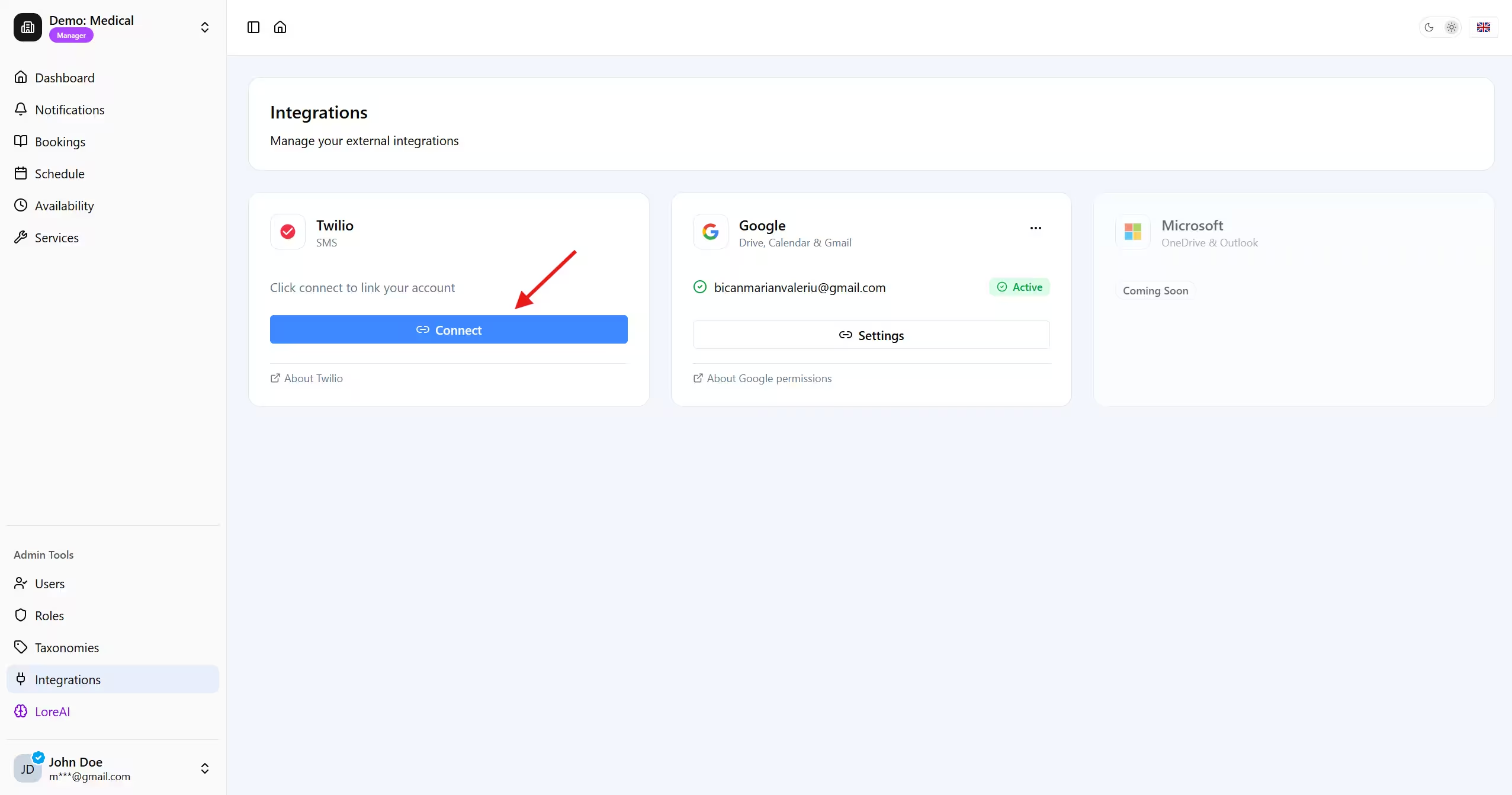
Rolens will redirect redirect you to:
https://www.twilio.com/authorize?
  response_type=code
  &client_id=
  &redirect_uri=
You will log in with your Twilio credentials (or creates a free trial account) and grants the requested scopes.
1.2 Exchange the authorization code
After consent, Twilio redirects back with a short-lived code. Rolens exchanges it server-side:
Your credentials are stored securely.
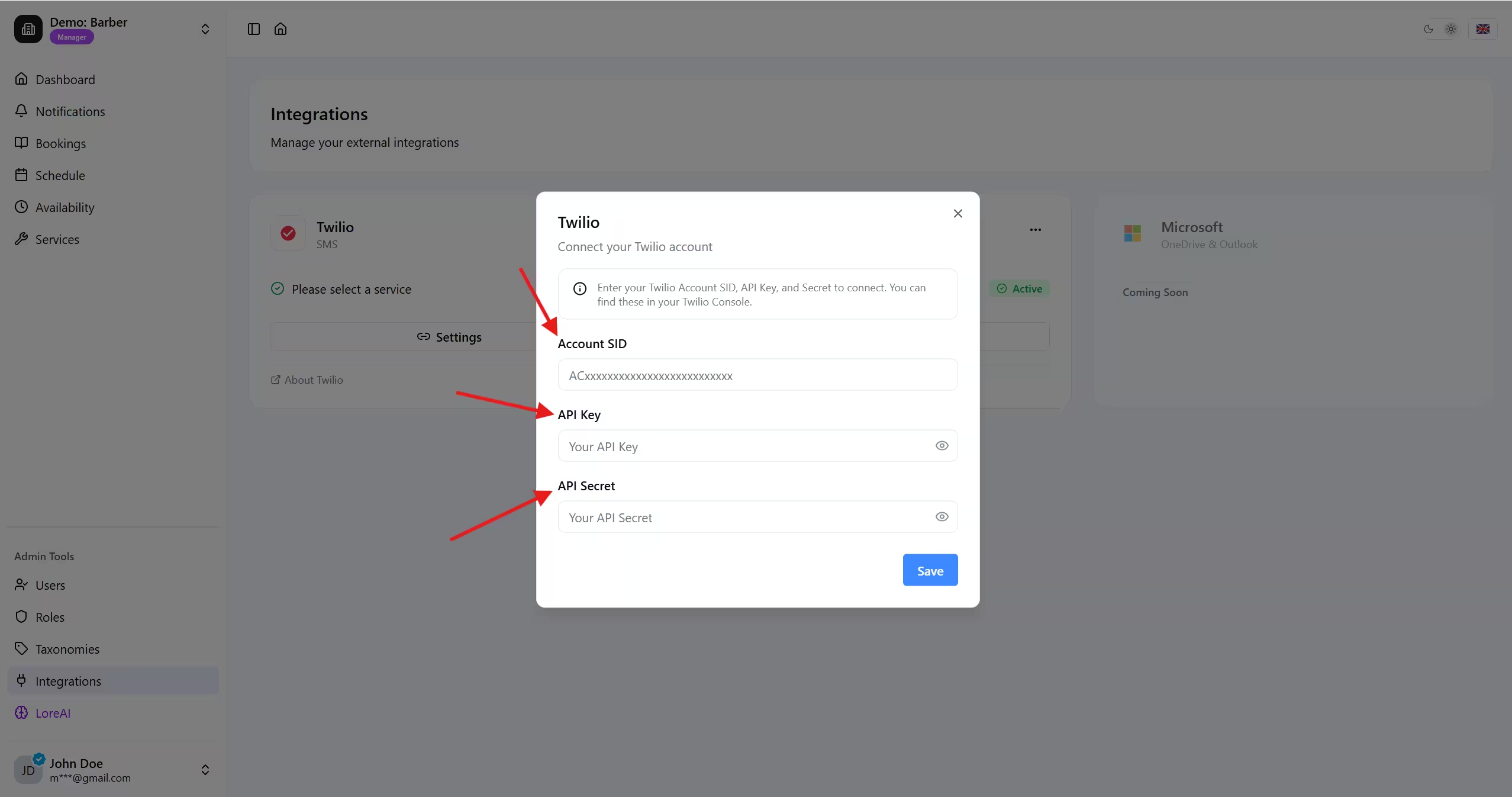
1.3 Supply your Account SID, API Key, and API Secret
OAuth handles authorization, but Twilio's REST API authenticates every request with an Account SID paired with an API Key + Secret. Retrieve these from the Twilio Console by followin these steps:
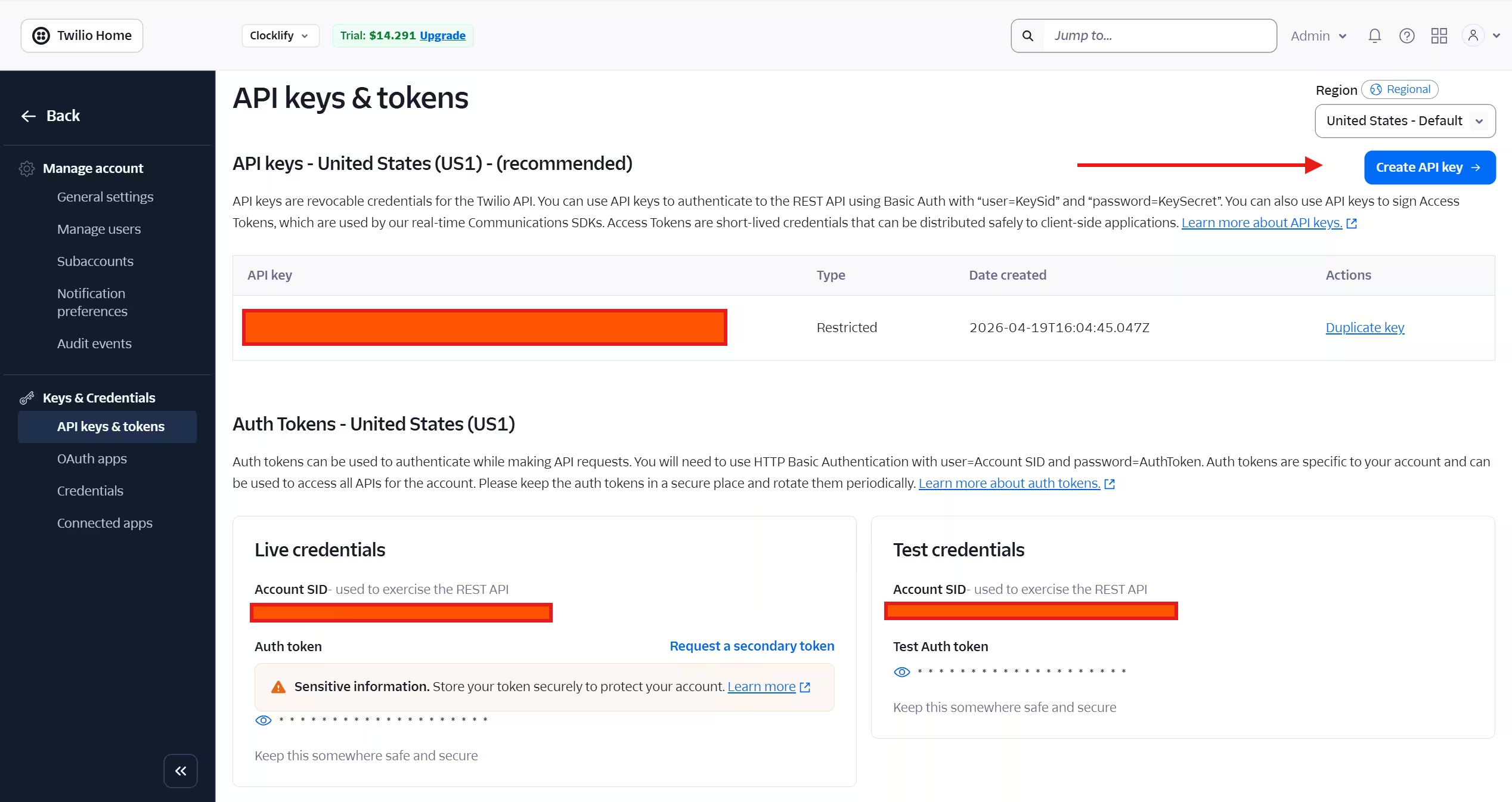
a) Go to API Keys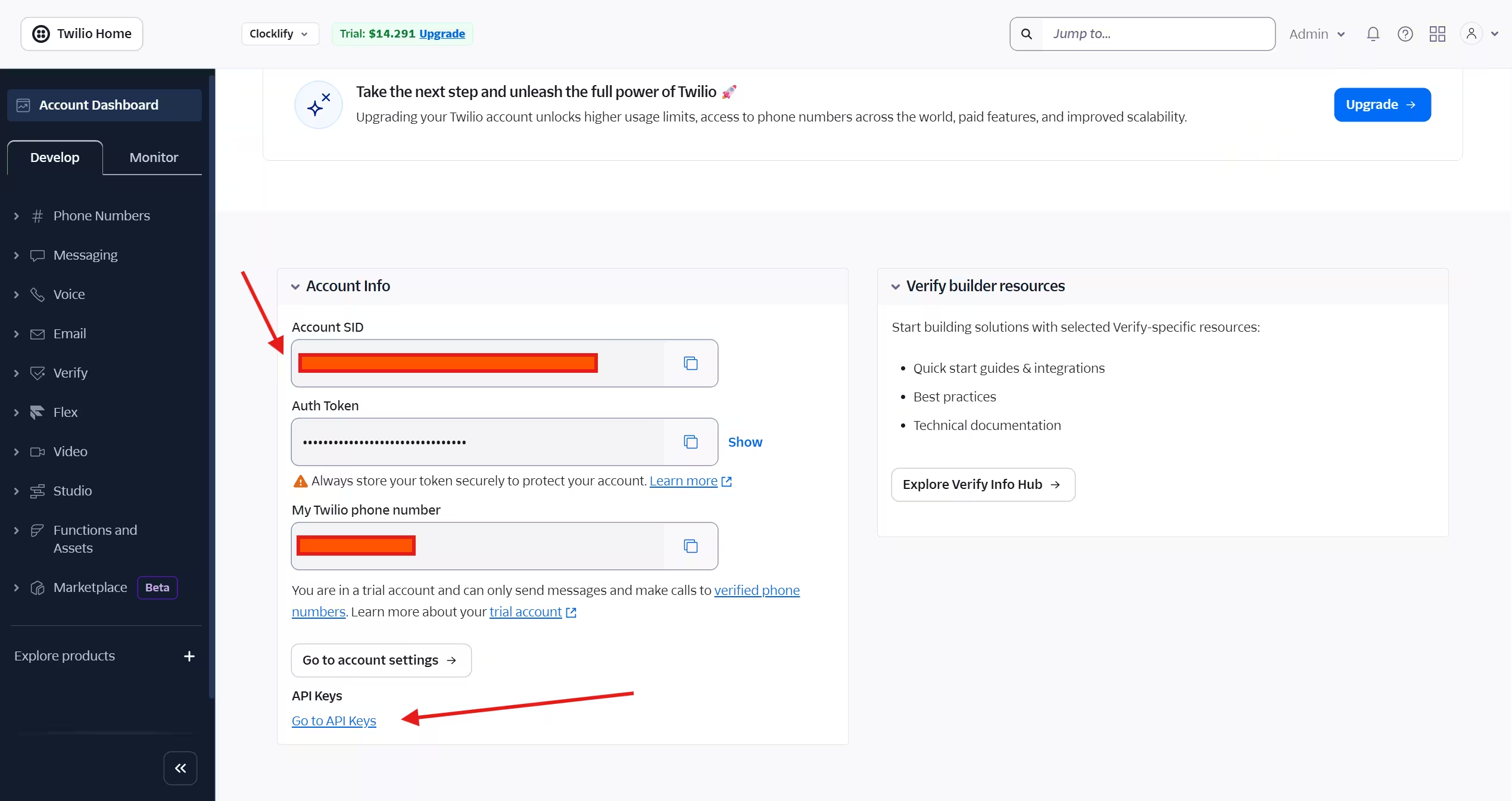 b) Click Create API Key
 c) Enter Name and select Read/List permissions for Messaging and Phone Numbers, alternatively you can give all permissions but we only need those 2.
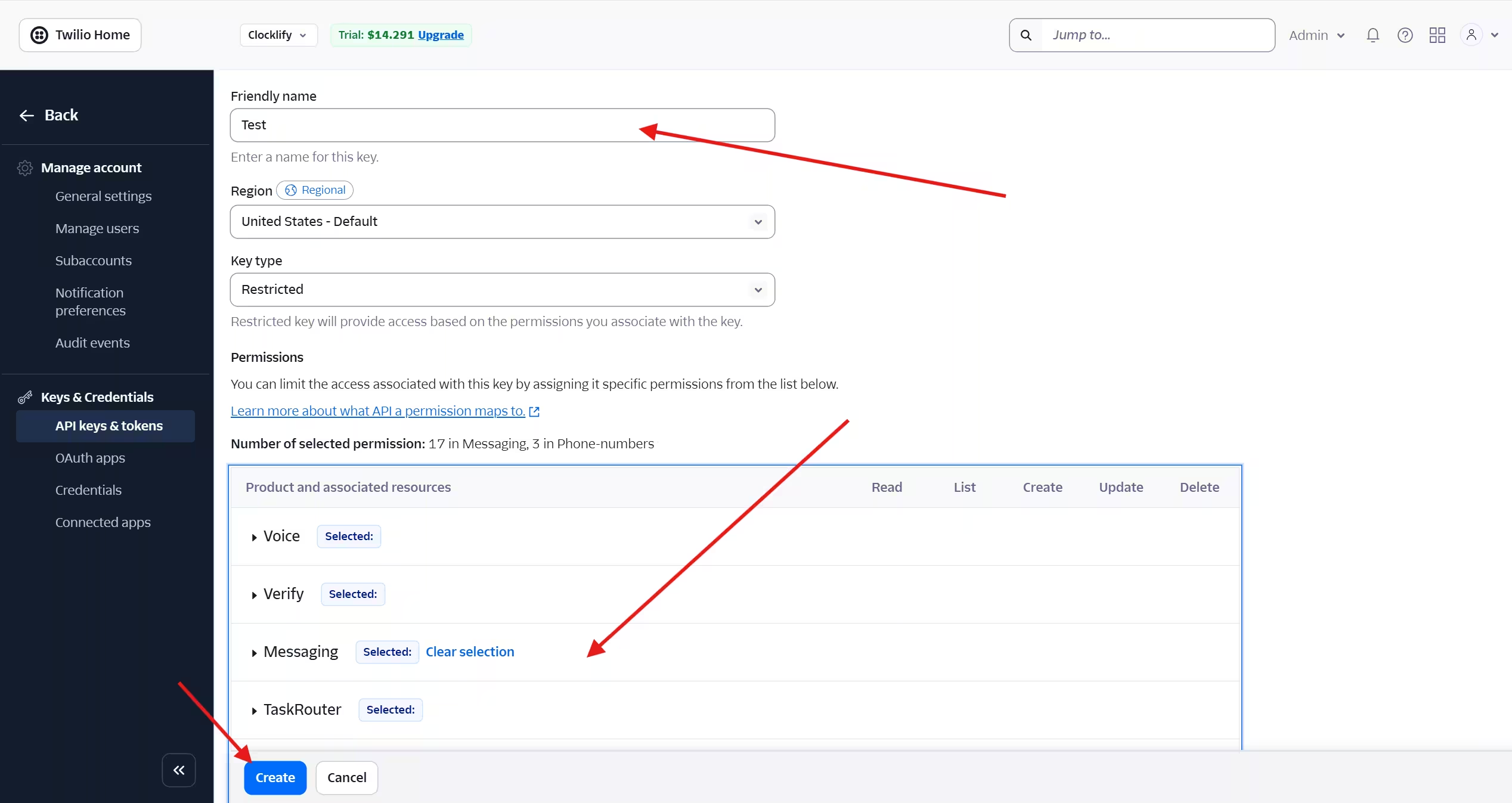 d) Click Create and Copy SID and Secret (this is only shown once so keep it in a safe place or you will have to create a new API key if is lost)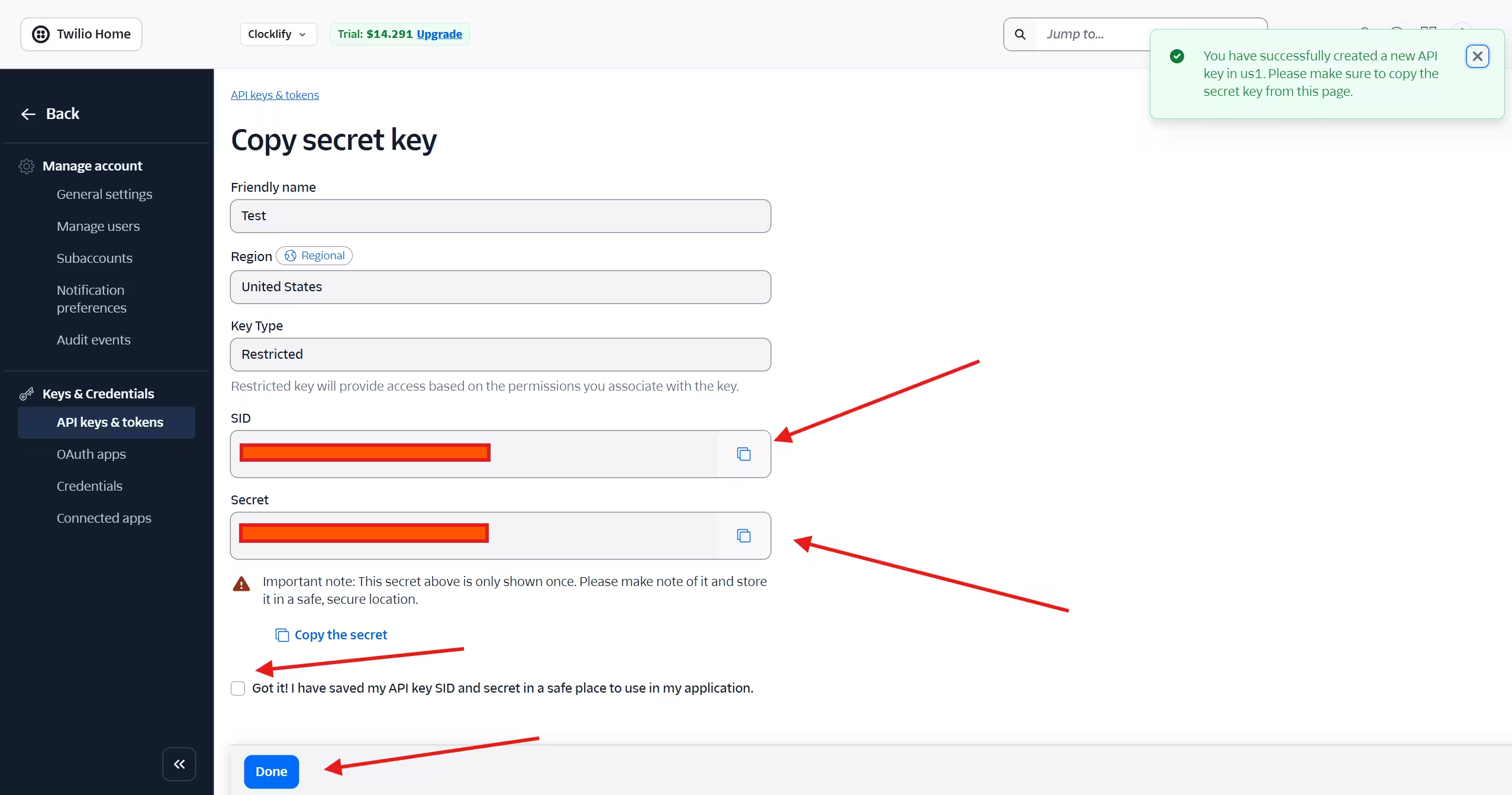
| Credential | Where to find it | Used for |
|---|---|---|
| Account SID | Console Dashboard → top of page | Identifies your Twilio account |
| API Key SID | Console → API keys & tokens → Create API Key | Username for HTTP Basic Auth |
| API Secret | Shown once at creation — copy immediately | Password for HTTP Basic Auth |
Enter all three in Admin Tools → Integrations → Twilio → Credentials inside Rolens.
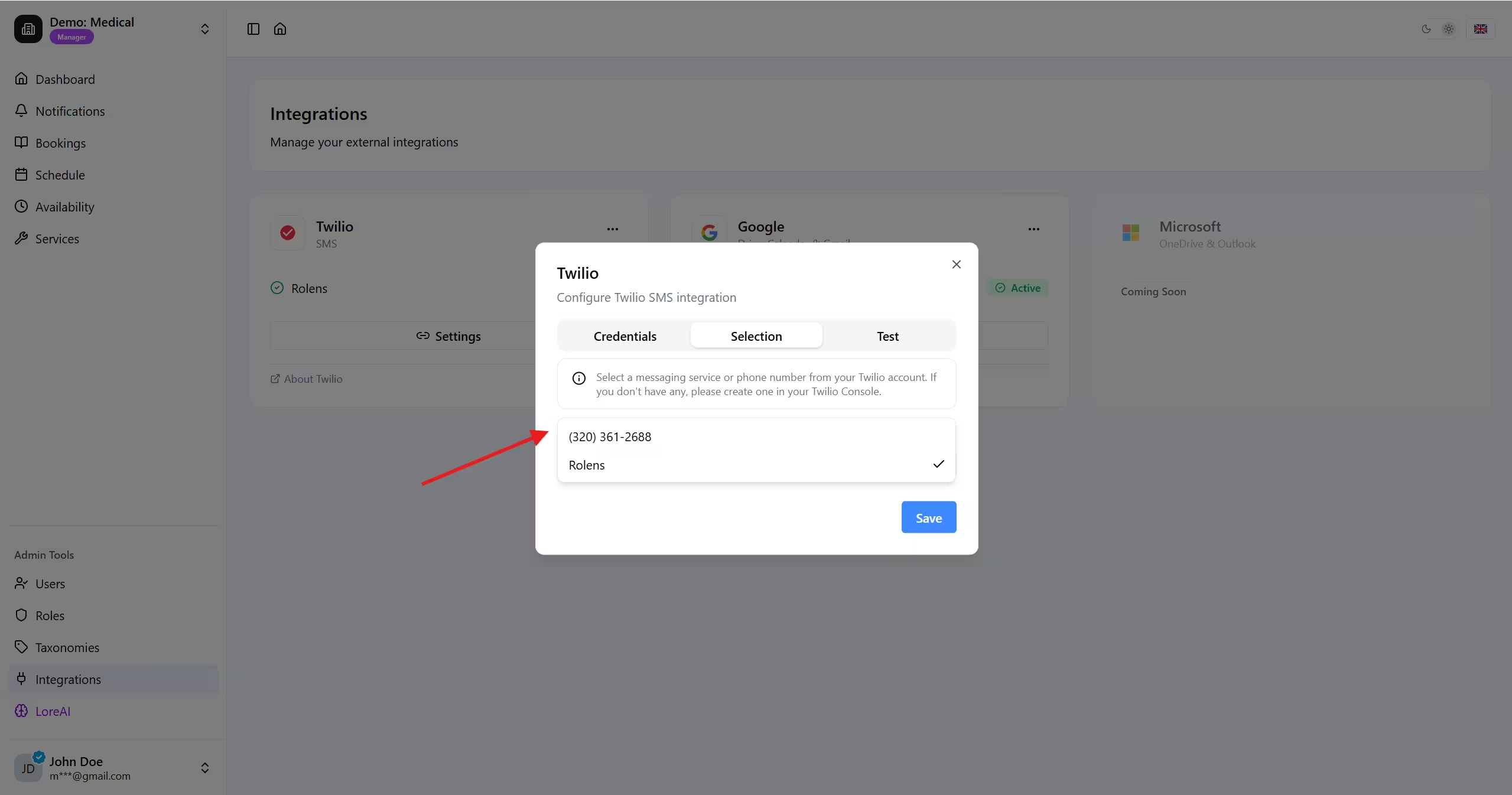
Step 2 — Select a Messaging Service or Phone Number
Twilio gives you two options for sending the consultations and treatments appointment reminder SMS. Choose based on your volume and compliance needs.
Option A — Messaging Service
A Messaging Service is a logical sender pool that handles number selection, delivery optimization, and opt-out compliance automatically.
- In Rolens, go to Admin Tools → Integrations → Twilio → Selection.
- Rolens fetches your existing Messaging Services via Twilio API
- Click Messaging Service shown in the select field.
- If you dont have one, click Create New in Twilio console then come back.
- Save. Rolens stores the
MessagingServiceSid(format:MG...) and attaches it to every outbound reminder.
Option B — Single Phone Number
Suitable for low-volume use cases.
- In Admin Tools → Integrations → Twilio → Selection
- Rolens lists numbers available on your account:
- Select the number from the dropdown. If none exist, follow the Buy a Number link to the Twilio Console.
- Save. The selected
PhoneNumberSid(format:PN...) is stored as theFromvalue for all reminders.
Step 3 — Send a Test Appointment Reminder SMS
With credentials saved and a sender configured, you can fire a test message to verify the full reminder pipeline end-to-end.
3.1 Open the test panel
Navigate to Admin Tools → Integrations → Twilio → Test inside Rolens dashboard.
3.2 Fill in the test details
| Field | Example value |
|---|---|
| Recipient phone number | +40712345678 (your verified number if trial account) |
| Message | Test message |
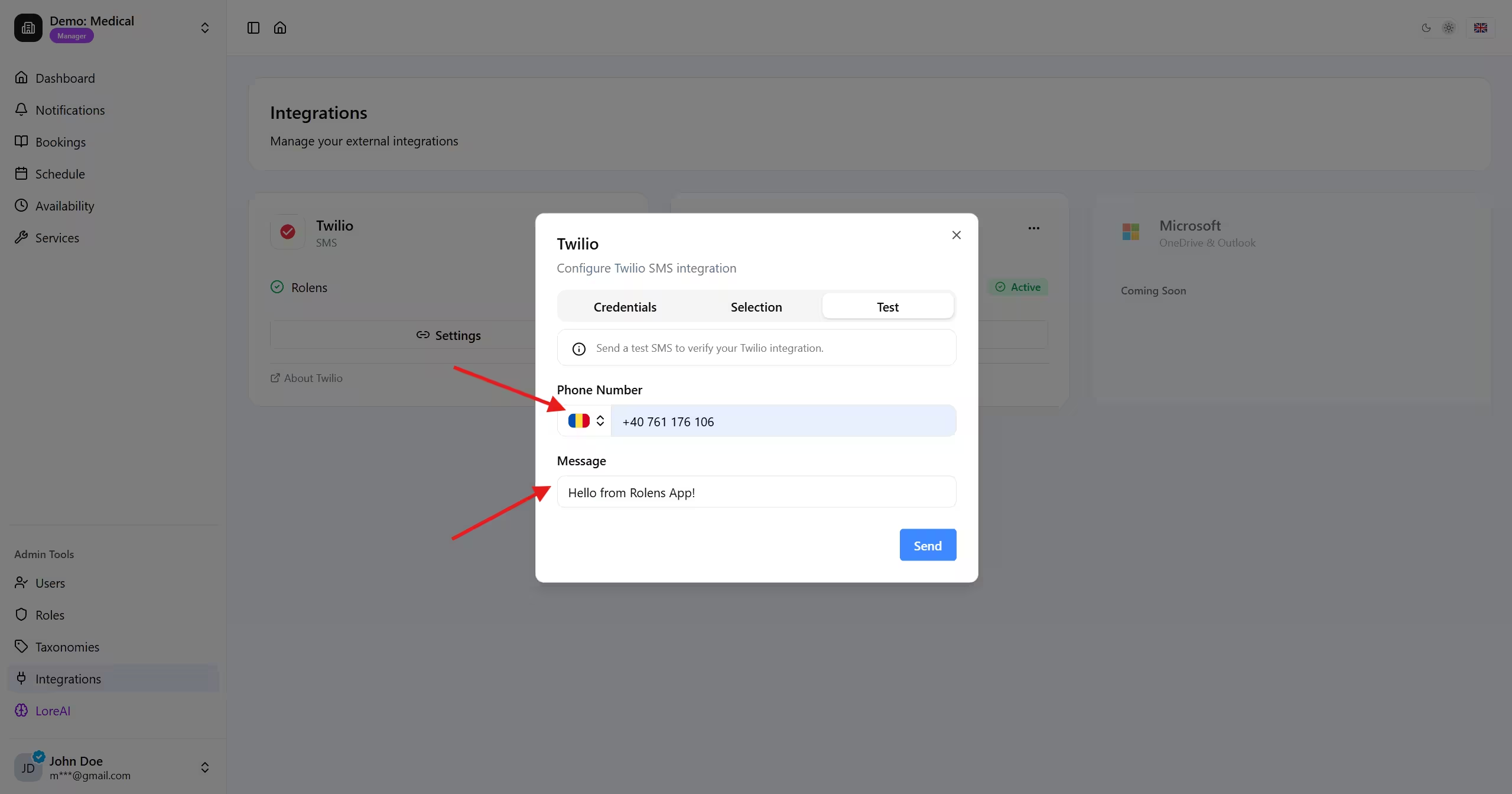
3.3 Send and verify
Click Send Test SMS. Rolens calls the Twilio Messages API:
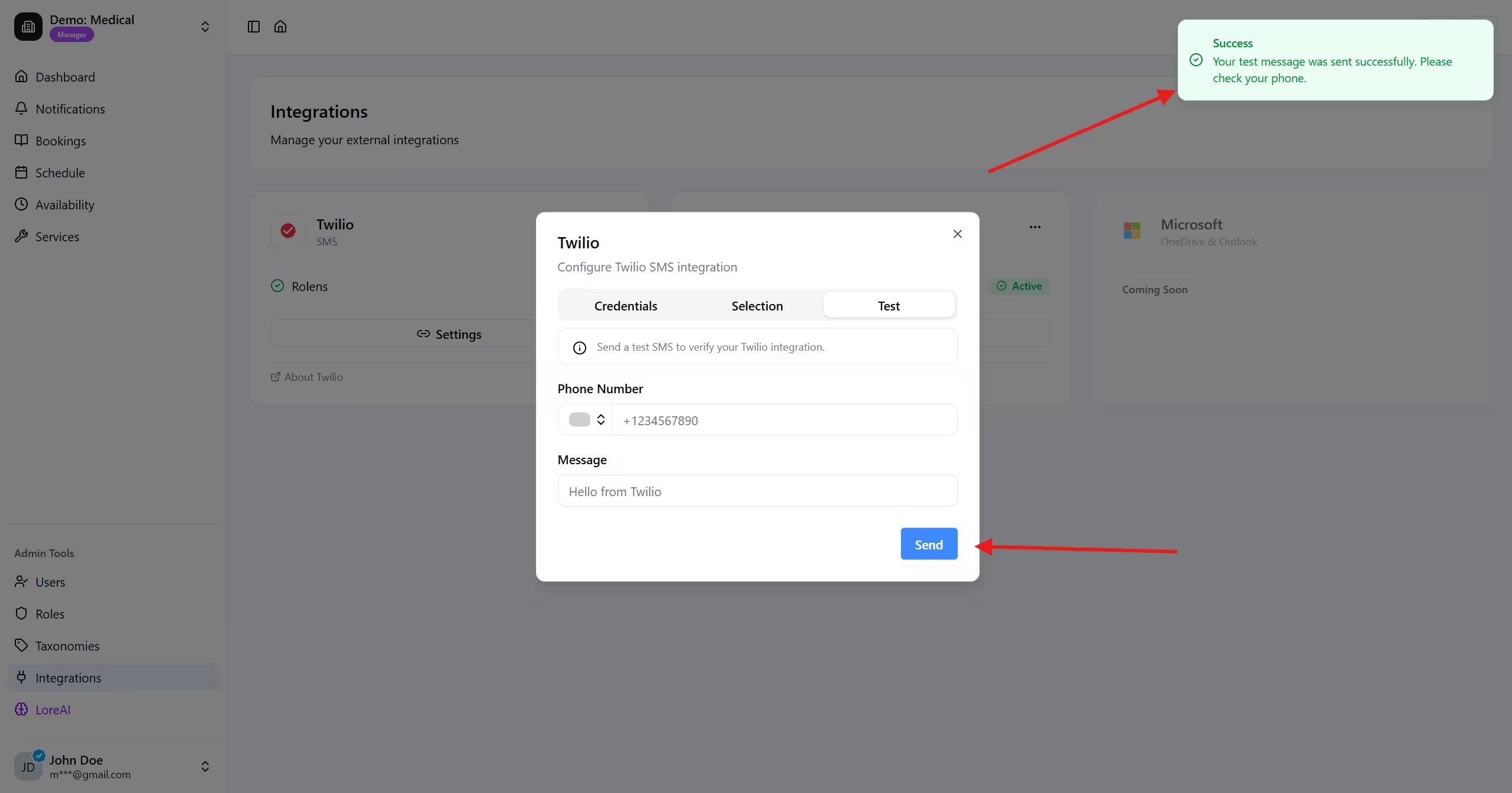
That's it - now your Medical Clinic will send confirmations, reminders and status changes automatically. Ready to reduce no-shows?